Cinema Studio’s new “Create 3D scene” feature can look like a true 3D reconstruction tool, but the behavior you see in outputs suggests a different mechanism. This post breaks down:
- what the tool is doing step-by-step
- why it “fails” in specific, repeatable ways
- a salvage method that lets you retry a bad output while keeping the same framing/angle
What Cinema Studio is
Cinema Studio is a powerful Gen AI cinema tool created by Higgsfield with camera/lens controls (focal length, aperture, etc.) that let you generate a base 2D image with a film-style look, then iterate cinematic videos.
How “Create 3D scene” works (observable pipeline)
The workflow the UI implies:
- Generate a base 2D image inside Cinema Studio.
- Hit Create 3D scene.
- The tool builds a Gaussian splat version of your scene.
- You move a virtual camera around that splat, take a snapshot, and Cinema Studio renders a new high-quality image from that angle.
The key detail: the tool is not just “rendering the splat.” It’s using the splat snapshot as a guide and generating a new image.
Why outputs fail (and why the failure looks weird)
Some failures don’t look like “slightly off camera math.” They look like semantic misinterpretation: characters morphing, objects appearing that weren’t there, or the scene resolving into something else entirely (e.g., the “scientists turned into chairs” type of derailment).
That failure mode is a hint that the render step is behaving like image generation with ambiguous guidance, not a deterministic 3D render.
The core theory: the snapshot behaves like a sketch
The model’s behavior matches a familiar pattern from sketch-guided workflows:
- the snapshot functions like a rough sketch/framework
- the system also references the original 2D image to pull texture, color, environment context, and character design
- the final render is the system “filling in the blanks” from that framework, similar to sketch guided generation
This explains why even abstract-looking splat snapshots can still lead to coherent results: the snapshot is acting as composition/framing guidance, not as literal geometry.
Why prompt specificity matters more than people expect
If the prompt is too vague, the output can go off the rails. The same sketch/snapshot can produce a strong result when the prompt is more specific and spatially explicit (what objects are where).
Prompt Style Example:
- Use the sketch in image 1 as a reference for the layout and composition of a movie still, which depicts a directly overhead, God’s eye view looking down at the top of a vintage blue truck on the left half of frame (image 4 is a reference for the truck) that has crates of apples in the bed of the truck. The truck is parallel to the front of the farmhouse.
- On the right side of frame, is the porch roof and part of the porch seen from above, of the farmhouse in image 2.
- On the top middle of frame, a woman depicted in image 3 is getting out of the passenger’s side (right side) of the truck, carrying a basket of apples.
- On the left edge of frame, a man (reference in image 3) is getting out of the driver’s side (left side) of the truck.
This is consistent with sketch-guided behavior: ambiguity invites the model to invent.
The salvage method: keep the framing, redo the render
If your first 3D scene output isn’t good—but you like the angle/framing—you can retry using a sketch-guided prompt style:
The workflow:
- From the 3D scene output, click Recreate (bottom right).
- Cinema Studio glitch will send you to “video” mode for some reason. Switch to Image.
- You’ll already have the Gaussian splat snapshot added as reference image 1.
- Add the original 2D image as reference image 2 (and/or – you can add additional reference images for character design, location, special props etc)
- In your prompt, explicitly assign roles:
- “Use image 1 for framing/composition” (the gaussian splat snapshot)
- “Use image 2 for texture/environment/character design” Etc. (original 2D image that produced the 3D Scene, or any other reference image)
- Then describe the shot simply and directly (top of frame / bottom of frame can help with cropping).
That’s the salvage loop: same snapshot → clearer instruction → better render.
Directional Prompting Keywords
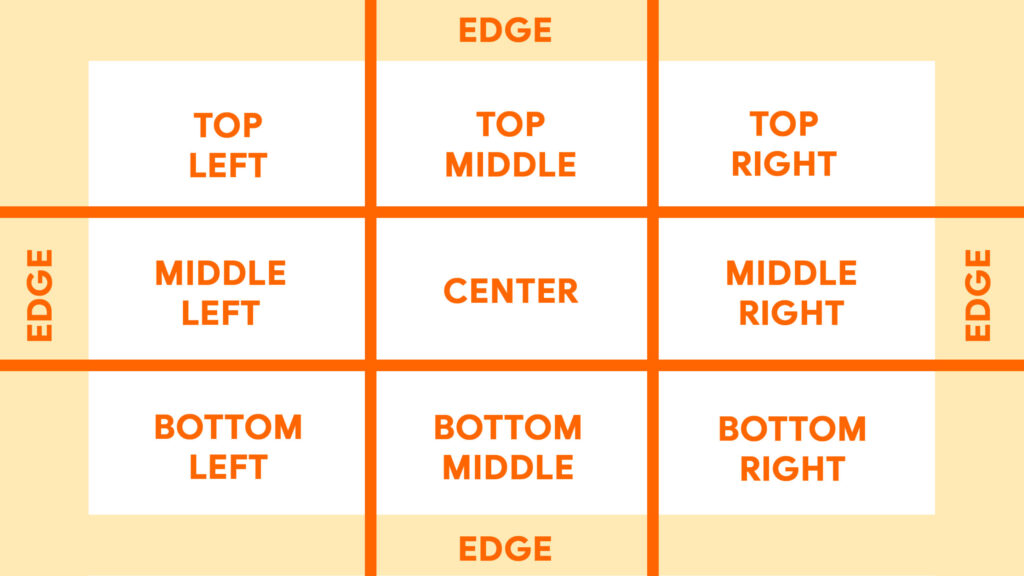
Spatially explicit prompting is a simple and direct prompting style that focuses on object locations in frame as opposed to building scenes with flowery or narrative language. It’s more similar to how filmmakers speak to each other on set about how frames should be set up. We’d say something like “let’s get a little more negative space on top of frame” or “can we get more extras in the midground?” or “can I get a hint of the foreground talent on edge of frame left?” This prompt style works really well whether you’re using SGG or simply text prompts.
Z-Space:
- Far Background
- Background
- Midground
- Foreground
- Far Foreground
X / Y Space:
Why this approach is useful (beyond “getting a good image”)
Exploring a scene in a navigable 3D-like space gives creators a more “set-like” way to think about camera placement and shot options. And when the tool doesn’t give you what you want, the fallback is to recreate via your own prompt with clear direction.
Summary
Cinema Studio’s “Create 3D scene” behaves less like true 3D reconstruction and more like a snapshot-as-sketch generator that’s also pulling from the original 2D image. That model explains both the strange failure cases and why a salvage loop works: recreate, assign reference roles, and use a more spatially explicit prompt to reduce ambiguity.
*This is a summary of the transcript of my most recent Gen AI video on YouTube. This blog post was co-written with ChatGPT.